
WhatsApp auto-replies for an online store, and when to add an AI chatbot
Yevhen Kurapov, co-founder · Updated Oct 13, 2026
WhatsApp Business has three free automations on its Tools tab: a greeting message, an away message and quick replies. They send fixed text and can't answer a question. To answer questions, connect an AI chatbot such as ChatPal and keep the app: it answers from your website and Shopify catalog, and steps back when you reply from your phone.
A shopper writes at 11 p.m.: "do you have the black runner in a 9?" With the WhatsApp Business app alone, she gets your greeting or away message, the same text everyone gets, and the answer waits until morning. The app's free tools send fixed text: the greeting and away message go out on their own, and quick replies are saved texts you send yourself with a shortcut.
An AI chatbot covers exactly those stock, price, shipping and order questions. Below, the free tools first, with the steps from the WhatsApp Help Center, then what an AI chatbot adds and how to connect one without leaving the app. We make ChatPal, so the second half uses our screens.
What WhatsApp Business automates for free
All three tools live on the Tools tab of the WhatsApp Business app. The steps below are for Android; on iPhone the names can differ slightly.
Greeting message
Sent automatically when someone messages you for the first time, or after 14 days without messages in that chat.
- From the Tools tab, tap Greeting message.
- Turn on Send greeting message.
- Tap the message to edit it, then tap OK.
- Tap Recipients and pick Everyone, Everyone not in address book, Everyone except… or Only send to….
- Tap Save.
Your phone needs an internet connection for it to send. An example for a store: "Hi, thanks for messaging Northside Running. We reply Monday to Saturday, 9 to 6. If it's about an order, send us the order number."
Away message
Tells people you're busy or away from your phone. You choose when it goes out.
- From the Tools tab, tap Away message.
- Turn on Send away message.
- Tap the message to edit it, then tap OK.
- Tap Schedule and choose Always send, Custom schedule or Outside of business hours. The last option only appears once you've set business hours in your business profile.
- Tap Recipients, pick who gets it (the same four options as the greeting) and tap Save.
Quick replies
These don't send themselves. They're saved messages with a keyboard shortcut, so you don't type your returns policy ten times a day. You can store up to 50, including images and videos.
- From the Tools tab, tap Quick replies.
- Tap the add icon, tap Message to write it, and tap Shortcut to set one, such as
/returns. - Tap Save.
In a chat, type "/" and pick the reply; it lands in the text field so you can edit it first. The app also builds default replies from your business profile, such as your hours and address. On WhatsApp Web and Desktop, quick replies can't include media.
Regular WhatsApp has none of this. These are features of WhatsApp Business, a separate free app. One number can't run in both apps at the same time, but you can move it from one to the other.
Where fixed replies fall short for a store
Here is what shoppers typically send a store on WhatsApp, and what each tool does with it:
| The message | Greeting or away message | AI chatbot answering from your store |
|---|---|---|
| "Do you have the black runner in a 9?" | Same fixed text as everyone | Checks the size in your catalog and sends the product |
| "Anything under $80 for trail running?" | Same fixed text | Lists matching products with current prices |
| "Where's my order?" | Same fixed text | Answers about that customer's own order, after they sign in |
| "Can I return it if it doesn't fit?" | A quick reply, once you're back | Answers from your returns policy |
| "I want to change my delivery address" | Same fixed text | Passes the request to you with the order number |
Two more limits are easy to miss. The greeting skips anyone who wrote in the last 14 days, so a customer who asked something on Monday gets nothing automatic on Thursday. And the away message doesn't know what's in stock or what an order is doing: whatever it says, everyone gets.
The fixed texts still have a job: they tell people you exist and when you'll reply. But if most of your chats ask things your site or catalog already answers, you're retyping those answers by hand.
What an AI chatbot adds on WhatsApp
What ChatPal does on WhatsApp for a store (the catalog parts need a connected Shopify store):
- Answers from your catalog. ChatPal keeps a copy of your Shopify catalog in sync on its own, so a price or stock change usually reaches the assistant within minutes. Prices follow the customer's country. It handles "the cheapest", "what's on sale", "what's new" and a size or color check, and says so when you don't carry something.
- Sends product cards. On WhatsApp each product arrives as its own interactive card with an image and a View product button, at most three at a time. A discounted product carries its previous price in the card text, for example "$60.98 (was $101.30)".
- Answers order questions. With Order support turned on, the assistant sends the customer a sign-in link to your store. Once they're signed in, it answers about their own orders only: where an order is, tracking, estimated delivery and the items. Cancel or delivery-change requests go to your team with the order number. Your store needs Shopify's new customer accounts.
- Answers everything else from your content. Shipping, returns, sizing and opening hours come from the pages and files you give it. It reads photos too, up to four per message, and replies in the language the customer writes in.
- Hands over when needed. A customer who asks for a person is handed to your team, and your reply from the ChatPal inbox arrives in their WhatsApp.
Adding to the cart from chat works only in the chat on your Shopify storefront, not on WhatsApp; the View product button takes the shopper to the product page instead. If your store isn't on Shopify, the assistant answers from your website pages and the files you upload, so it won't know live stock. For the full picture, see ChatPal's Shopify page and our guide to answering "where is my order?".
WhatsApp also has its own agent in the app, Meta Business Agent. Its help center says it's available only in some countries to select businesses, with a waitlist, and that the language it replies in is set by your business's phone number. If you connect it, your greeting message is turned off.
Keep the app on your phone
You don't have to give up the WhatsApp Business app to add AI. Meta's documentation allows one number to stay in the app and be connected to a service like ChatPal at the same time. The assistant answers every new message; when you reply from your phone, it steps back from that chat, which shows as Operator on the phone in Chats. It returns after 24 hours with no reply from your team (you can set 1 hour to 30 days), or when you click Return to AI. What changes for your number, and what happens to your old chats, is in our guide to keeping the WhatsApp Business app.
Setting it up
1. Sign up and give the assistant your store. Sign up at chatpalbot.com with your email or Google. On first sign-in, paste your store's address and click Let's get started; ChatPal reads the site and drafts the assistant's instructions. If the site runs on Shopify, ChatPal offers to connect the store right there. Otherwise, connect it later under Integrations → Shopify: enter your store's myshopify address, click Connect Shopify and approve the read-only permissions in Shopify.
2. Fill the gaps. In Configuration, upload your shipping rates, returns policy and size guide on the Files tab with Upload files, and add policy pages on the Links tab with Add Link. To answer order questions, turn on Order support on the Shopify integration page.
3. Test before customers see it. Open the Playground from the left navigation and ask ten real questions from last month's WhatsApp chats, including an out-of-stock product and an order question. Fix the file or the instructions when an answer is wrong. Test replies count toward your monthly messages.
4. Connect WhatsApp and keep the app. You need a Facebook account, a Meta Business account (you can create one in the popup) and your number live in WhatsApp Business, version 2.24.17 or later.
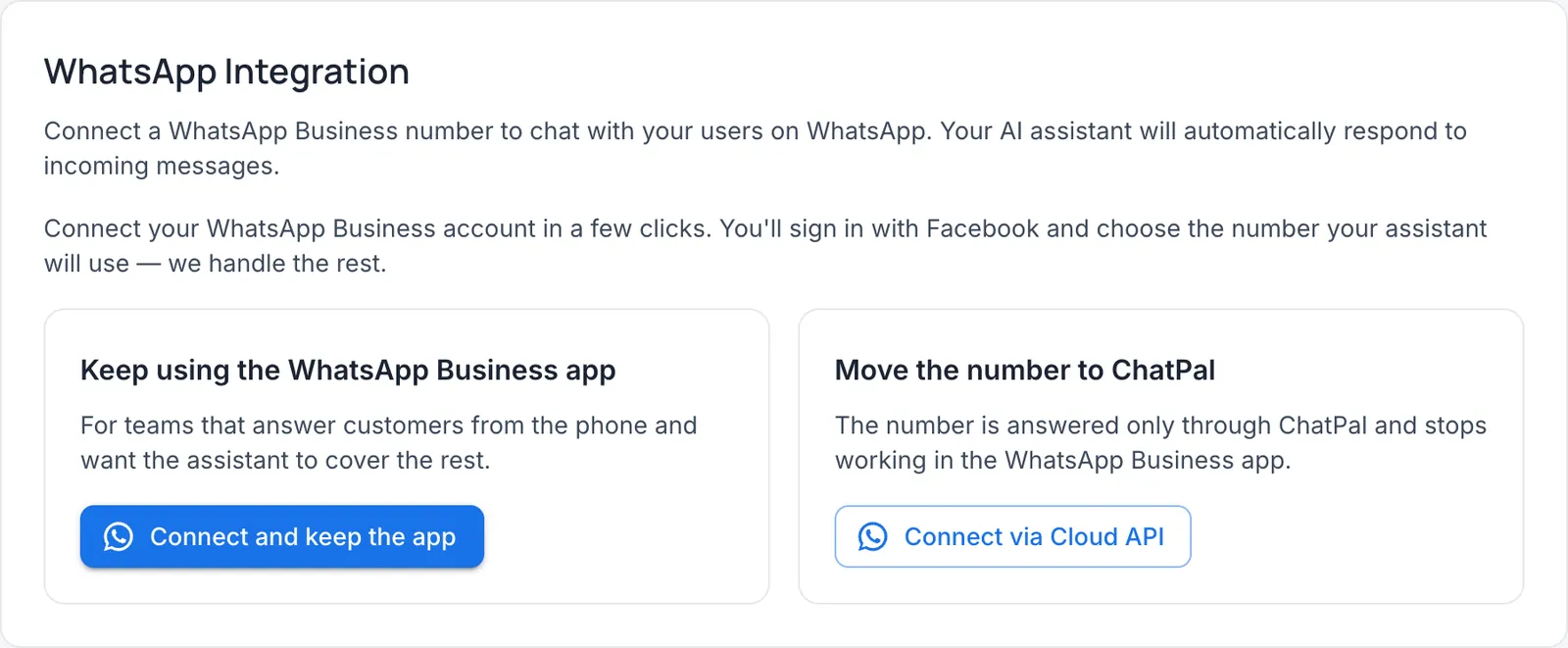
- In ChatPal, go to Integrations → WhatsApp.
- Click Connect and keep the app, read what changes for your number, tick I understand and click Continue.
- In the Facebook popup, sign in, pick your Meta Business account and WhatsApp Business account (or create them) and choose the number.
- Scan the QR code from the WhatsApp Business app, under Settings → Account → Business Platform.
5. Turn off the app's greeting and away messages. Meta says they keep working in the app after you connect, so they would cross with the assistant's answers, and the assistant may pause in that chat. On the Tools tab, open Greeting message and turn off Send greeting message, then do the same for Send away message. Keep your quick replies: they're for when you answer yourself.
6. Decide what goes to a person. In Configuration, open the Settings tab and turn on Enable human-in-the-loop. When a customer asks for a person, the assistant stops in that chat and your team gets an alert by email or Telegram, as each member chose. The chat waits in Chats under Handed off to a human.
7. Message your number from another phone, then reply yourself from the app to watch the assistant step back.
What it costs
Meta's fees. Meta charges per delivered message. When a customer messages you, a 24-hour customer service window opens, and ordinary replies inside it are what Meta calls service messages. From October 1, 2026, the first 1,000 service messages each month are free for each business phone number; from the 1,001st, Meta charges each one at its published rate for the customer's country. If your Meta account has no payment method in Billing Hub, Meta stops delivering those replies once the free tier is used, so add one if you expect more than 1,000. Templates, such as a promotion, are charged separately, and messages you send from the app on your phone stay free.
ChatPal. WhatsApp is on every plan, the free one included. Prices checked on October 13, 2026, billed monthly (pricing):
- Free: 100 replies a month, 1 assistant.
- Starter: $20 a month for 500 replies.
- Standard: $50 a month for 1,500 replies.
- Pro: $120 a month for 4,000 replies.
Each reply the assistant writes counts as one message, including replies to your own tests. New accounts get a one-time welcome bonus of extra messages in their first month. An illustration, on our own assumption: 15 WhatsApp conversations a day at two assistant replies each is about 900 replies a month: inside Standard, and inside the 1,000 that Meta doesn't charge for, as long as your team's replies from the ChatPal inbox don't push it past 1,000. Count a week of your own chats before you choose.
Limits
- No voice notes or videos. Audio, video and documents get no reply. Photos are read, up to four per message and 10 MB each.
- It never writes first. No broadcasts, abandoned-cart nudges or shipping updates: it only replies.
- WhatsApp for Windows and WearOS aren't supported. Replies sent from them don't reach ChatPal.
- Open the app regularly. Meta disconnects the number if the primary phone goes unused for about 14 days.
- Username senders. If a customer hides their number behind a WhatsApp username, your replies from the app don't pause the assistant. Click Take over in that chat and reply from ChatPal.
- One assistant per number, and no official business badge while you keep the app.
Everything the assistant does on WhatsApp is on our WhatsApp chatbot page. If customers also message you on Instagram, see Instagram DM automation for online stores. If you're still comparing WhatsApp tools, our Wati alternatives comparison puts team inboxes and AI options side by side.
The free plan is enough to find out whether it handles your chats. Do steps 1 to 3, ask the Playground last week's ten most common WhatsApp questions, and connect the number only once the answers are ones you'd send yourself.