
How to keep your WhatsApp Business app and number and add an AI assistant
Yevhen Kurapov, co-founder · Updated Sep 29, 2026
Click “Connect and keep the app” in ChatPal and scan a QR code from the WhatsApp Business app. You keep replying from your phone and the assistant answers the rest. When you reply, it steps back from that chat and returns after 24 quiet hours by default. Your last six months of chats can come into the ChatPal inbox.
A customer texts "how much for a doodle?" while you have a dog on the table. ChatPal can answer that without taking the number out of the WhatsApp Business app: you keep replying from your phone, and the assistant covers what you don't get to. One thing to know first: it answers every text that arrives on the number, not only new customers (see Limits).
Keep the app or move the number
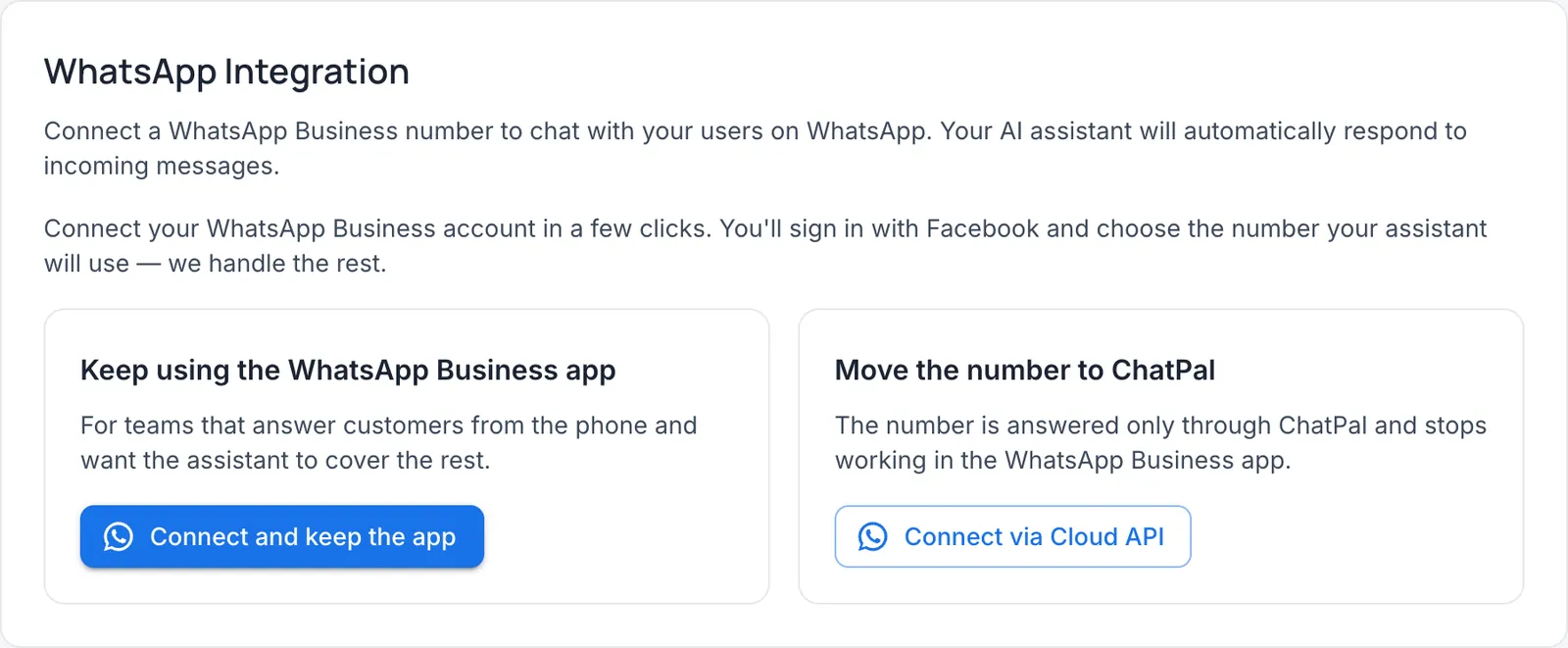
The WhatsApp integration page in ChatPal offers two ways to connect.
- Keep using the WhatsApp Business app. The dashboard describes it as "For teams that answer customers from the phone and want the assistant to cover the rest." The number stays in the app on your phone.
- Move the number to ChatPal. The number is answered only through ChatPal and stops working in the WhatsApp Business app. You reply from the ChatPal inbox instead.
The rest of this guide covers the first way.
Step 1: sign up and give the assistant your prices
Sign up free at chatpalbot.com with your email or Google account. ChatPal creates an assistant and opens the Let's set up your assistant page: enter a Bot name and click Save name, then add your Business website URL (optional) and Business description and click Save.
Then go to Configuration and open your assistant. Under Files, click Upload files, then Browse files, and add your price list or service menu as a PDF, Word or text file. Then open the Attributes tab and fill in two things:
- Under Frequently Asked Questions, click Add New FAQ, type a Question and its Answer, and click Add FAQ — for example prices by breed and coat, or what a full groom includes.
- Under Policies, click Add New Policy, fill in Policy Name and Policy Description, and click Add Policy for rules such as cancellations or what happens if a dog is matted.
For example, with your own prices in place of this made-up one: "A full groom for a doodle starts at $95, depending on size and coat."
To have the assistant hand some chats to you, for example when a customer asks for a person, open the Settings tab and turn on Enable human-in-the-loop. A handed-over chat waits in Chats under Handed off to a human, and your team is notified by email, Telegram or both; each person picks on the Notifications tab in workspace settings. You answer it there. With the switch off, the assistant doesn't hand a chat off on its own. You can still click Take over on any chat in Chats.
Step 2: connect and keep the app
You need a Facebook account to sign in with, a Meta Business account and a WhatsApp Business account (if you have neither, the popup lets you create both as you go), and the number live in the WhatsApp Business app on your phone. You don't need a developer, API keys or a Meta app.
- In ChatPal, go to Integrations → WhatsApp.
- Click Connect and keep the app. ChatPal lists what changes: no official business badge, and other devices get logged out of WhatsApp (full list under Limits below). Tick I understand and click Continue.
- A Facebook popup opens. Sign in, then pick or create your Meta Business account and your WhatsApp Business account. Then choose the phone number, the one that's already in the app on your phone.
- The popup shows a QR code. Scan it from the WhatsApp Business app on your phone: Settings → Account → Business Platform. While you connect, you're also asked whether to share your chat history. Yes copies your last six months of one-to-one chats into your ChatPal inbox; no imports nothing. It can be requested only once for a number, so decide before you tap.
- When the popup closes, the WhatsApp integration page in ChatPal shows your connected number.
If you close the popup before the end, nothing is connected; click the button again. If ChatPal says no number is connected to the WhatsApp Business app, check that the app on your phone is signed in, then connect again and scan the code. If the connect buttons stay grey, an ad blocker is probably stopping Facebook's sign-in from loading: turn it off for ChatPal and reload the page.
The page also shows whether your contacts and chat history were requested. To test it, text your business number from another phone, such as your personal WhatsApp or a friend's, and check that the assistant replies.
When you reply from your phone
- As soon as you reply from the app, the assistant steps back from that chat. In ChatPal's Chats, the conversation is marked Operator on the phone, and the transcript shows your reply after a line saying the assistant is paused. The customer's next messages still appear in the chat, but the assistant leaves them to you.
- To hand the chat back sooner, open it in ChatPal and click Return to AI.
- Otherwise the assistant takes the chat back after a quiet period with no replies from you. The default is 24 hours. Change it under Configuration → Settings → Operator replies from the phone → Return the assistant after (hours). Anything from 1 hour to 30 days works; press Enter or click away from the field to save.
Your past conversations
If you agreed to share your chat history when connecting, ChatPal imports your one-to-one chats from the last six months into Chats. Each one is labelled Imported from the WhatsApp Business app until the customer writes again or you reply from the phone.
- A photo, voice message or video shows as a placeholder, with its caption when WhatsApp provides one.
- Group chats aren't imported.
- Your contacts come over when you connect, and later changes in the app sync on their own. A name you've saved shows in ChatPal's inbox, but if the customer's own WhatsApp profile has a name set, that one always wins.
- If history sharing is turned off in the app, nothing is imported and the integration page says so. Messaging works as normal.
Limits
- It answers every text, from everyone. Regulars, friends and suppliers get replies too: the assistant answers every text message sent to the number. To stop it in one chat, reply from the phone or click Take over in ChatPal. To stop it everywhere for a while, click Pause in the Auto-replies card under Configuration → Basic, pick how long under Pause for, and click Pause auto-replies.
- Customers who use a WhatsApp username are the exception to that lever. They hide their number behind a username and show in Chats under a name with no phone number. The assistant answers them, but your replies from the app don't reach ChatPal and don't pause it, so you and the assistant could both answer the same person. For those chats, click Take over in ChatPal and reply from there.
- The assistant reads text and photos (up to 4 photos per message, 10 MB each). A voice note or a video is ignored without a reply, so check the app for those.
- It can't start a conversation. It only replies to customers who write first.
- WhatsApp on your laptop or tablet is logged out when you connect. You can link it again afterwards, except WhatsApp for Windows and WearOS, which aren't supported: replies sent from them don't reach ChatPal, so the assistant won't know you've answered.
- There's no official business badge on a number connected this way.
- Open the app regularly. If it goes unused too long, Meta disconnects the number; the integration page then shows the date and a Connect and keep the app button.
- One number can be connected to one assistant at a time.
For more on the channel, see the WhatsApp chatbot page; plans are on the pricing page.
If you are still choosing a service, compare the options in AI chatbots for WhatsApp, Instagram and Telegram.