
How to answer “where is my order?” automatically on Shopify
Yevhen Kurapov, co-founder · Updated Sep 29, 2026
Connect your store to ChatPal and turn on order support. A customer signs in with their own store account, and the assistant tells them where their order is: status, tracking link, estimated delivery and items. It sees only that customer's orders, never changes an order, and passes cancel or delivery-change requests to you. It doesn't work in Zendesk.
If twenty messages a week ask where a parcel is, most of them get the same reply from you: it shipped on Tuesday, here is the tracking link, it should arrive Friday. ChatPal can give that reply from the order itself, but only after the customer signs in to your store: it doesn't look orders up by order number or email. Anything that needs a decision, such as a cancellation or a new delivery address, still comes to you.
What it answers, and what it hands to you
Once a customer has signed in, the assistant can tell them, for each of their orders:
- where it is;
- the carrier and the tracking link;
- the estimated delivery date, when Shopify has one;
- what's in it;
- a link to your store's order status page.
It can only pass on what Shopify holds, so an order posted without tracking has no link or estimate.
It shows no name, address, phone number, payment detail or order total, even to the customer, and never changes an order.
Asked to cancel, it explains what is generally possible: an order that hasn't shipped can usually still be cancelled by you, and a shipped parcel can't be stopped before it arrives. That answer is general, not your own cancellation policy. To have it know yours, add it to Instructions in Configuration and check the answer in step 3. If the customer wants to go ahead, the assistant sends you the request with the order number and the customer's own words, and the decision stays with you.
Human-in-the-loop decides how that request reaches you, and it is off by default. To switch it on, open Configuration, open your assistant, click Additional Settings, switch on Enable human-in-the-loop and click Save.
- Off (the default): the assistant keeps replying and you get a notification with the request. Each person picks email, Telegram or both: click your workspace name at the top of the dashboard, choose Manage workspaces... and open the Notifications tab.
- On: the assistant stops replying in that chat until you click Return to AI. The chat waits for you in Chats, under the Handed off to a human view, and a notification goes out the same way.
Usual delivery times and returns come from your shipping and returns pages, which ChatPal reads when you connect the store, if your plan's link allowance has room; if it doesn't, add those pages yourself. The Links tab under Configuration lists them; after you change a page, choose Reindex on its link.
Before you start
You need:
- a ChatPal account and access to your Shopify admin;
- a store on Shopify's new customer accounts.
To check which you have, open Settings > Customer accounts in your Shopify admin. If the Upgrade banner shows at the top of the page, you're on the older system, which Shopify's help pages call legacy customer accounts and mark as deprecated. ChatPal's Order support section also shows a warning in that case, and your customers can't sign in from the chat until you switch.
Read Shopify's upgrade guide before you click Upgrade: we haven't checked what it changes for your customers' logins or checkout.
Step 1: connect the store
- In ChatPal, click Integrations, then Shopify.
- Under Store address, type your store's Shopify address, such as
your-store.myshopify.com. A custom domain you've pointed at the store won't work here. - Click Connect Shopify and approve the connection in Shopify.
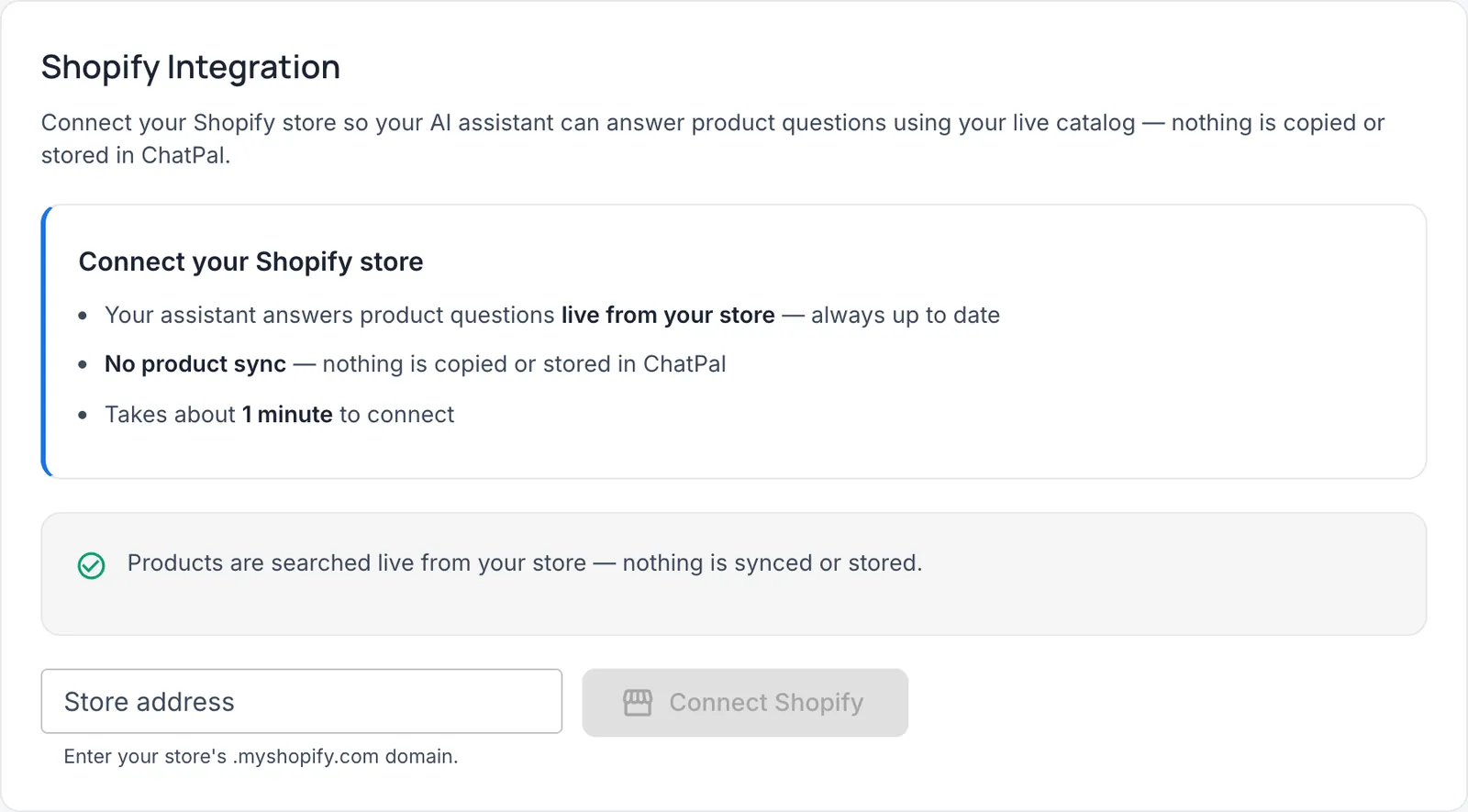
This step connects the store. Reading a customer's own orders needs a separate permission, which you grant in step 2.
A Setting up your store screen then runs for a minute or two and opens your assistant's configuration. From your store's pages (about, FAQ, shipping, returns) it drafts the welcome message, the instructions and the widget's subtitle, and it takes the widget's title and colours from your store. Anything you've already written is kept unless you tick Replace in the Review before we set up step. Read the drafts in Configuration before customers see them.
To put the chat on your storefront, go to Online Store, then Themes, then Customize in your Shopify admin, open App embeds, switch on ChatPal Chat Widget and save the theme.
If you haven't set up the store connection and the assistant yet, start with the Shopify setup guide.
Step 2: turn on order support
Once the store is connected, the Shopify page in ChatPal has an Order support section.
- Click Grant order access.
- Shopify's permission screen opens. It lets ChatPal offer your customers your store's own sign-in.
- Approve it and come back to the ChatPal page. The switch turns on by itself, and the section shows On.
Switch it off with Turn off and back on with Turn on at any time.
What the customer sees
On your website there's no form to fill in. When a customer asks about an order, the chat offers a Continue button and a small sign-in window opens. If they're already signed in to your store, it closes again and the answer arrives.
Anyone else sees your store's sign-in first. With new customer accounts there's no password: they enter their email, and Shopify emails them a 6-digit code to type in.
Shopify creates a customer profile automatically when an order is placed, so a guest buyer usually has one and can sign in with the email they used at checkout. We haven't confirmed that on every store. If most of your orders are guest checkouts, run step 3 below with a guest order of your own before you rely on it.
On WhatsApp, Telegram and Instagram, the assistant sends a sign-in link instead, and the answer follows once they've signed in.
A sign-in lasts for a while, not forever, so a customer who comes back later signs in again. It is one tap if they are still signed in to your store.
Step 3: test it with your own order
Try it as a customer would.
- Pick an order that has already shipped with a tracking number, placed with an email you can open. A guest checkout of your own is the best test. A fresh order has no tracking yet, so don't buy anything new.
- In a private browser window, open the chat on your storefront and ask "where is my order?" in your own words. Tap Continue, sign in with that email and the code Shopify sends, and compare the status and tracking link with the order in your Shopify admin.
- Ask to cancel the order. The assistant should say a shipped parcel can't be stopped, and what it says about cancelling should match your policy. If it offers to pass the request on, agree, and check that it reaches you as described above, with the order number.
- If you've connected WhatsApp, Instagram or Telegram (each has its own tile under Integrations), ask the same question there and follow the sign-in link. Otherwise skip this.
After a few days, look through the order conversations in Chats. If customers keep asking something the order can't answer, such as when you restock, add it to the right store page and choose Reindex on its link (Configuration, Links), or add it to Instructions in Configuration.
Limits
- New customer accounts only. A store on the older system can't use order support until it upgrades.
- The customer has to sign in. There's no lookup by order number or email address, so a customer who won't sign in gets no order answer.
- Read only. Cancellations, address changes and refunds are always yours to make in Shopify.
- Written chat only, and not in Zendesk. Order support works in the website chat, WhatsApp, Telegram and Instagram. On WhatsApp, Instagram and Telegram it handles text messages only (private chats only on Telegram), and it can't start a conversation: the customer writes first. No phone calls or Viber.
- One store per assistant.
What it costs
Order support is on every plan, including Free. Replies about orders count towards your monthly messages like any other, your own tests included. Free has 100 a month, Starter 500 for $20 and Standard 1,500 for $50 (plans, checked 29 September 2026). ChatPal publishes its prices in dollars. At twenty order questions a week (about 85 a month) and an assumed two or three replies each, which you should replace with your own count, expect 170 to 260 replies a month: more than Free, well inside Starter, before any other questions the assistant answers.
For everything else ChatPal does with a Shopify store, see the Shopify page. If you're still choosing a tool, our comparison of AI chatbots for Shopify stores shows how each one checks who is asking about an order.
If you are comparing helpdesks for these questions, see Gorgias alternatives and Tidio alternatives.