
Customer service chatbot for an online store: what to automate and how to set it up
Yevhen Kurapov, co-founder · Updated Oct 13, 2026
A store's support bot should answer the repeat questions (product details, stock, sizes, shipping, the returns policy, order status) from your catalog, policies and orders, and pass damaged items, refunds and complaints to a person with the chat attached. ChatPal does this on your website, WhatsApp, Instagram and Messenger: free for 100 replies a month, $20 a month for 500.
Most messages to an online store are the same eight questions asked a hundred different ways: is it in stock, will it fit, when will it arrive, where is my order. The answers already sit in your catalog and your policies, which is why these are the questions to hand over first. Below: which questions to give a bot, what it needs to read, how the hand-off should work, and how to tell after a month whether it's earning its keep. The setup steps use ChatPal, which we make; everything else applies to whichever tool you pick.
The eight questions a store gets
| Question | What customers type | Bot or person | What the bot needs |
|---|---|---|---|
| Product details | "Is the lid dishwasher safe?" | Bot | Product descriptions from your catalog |
| Stock and variants | "Is the black one back in medium?" | Bot | Stock per variant, checked when asked |
| Size and fit | "My chest is 40 inches. M or L?" | Bot, from your chart | Your size chart and fit notes as text |
| Price and sales | "Is anything on sale?" | Bot. A discount code that won't apply goes to a person | Current prices, previous prices, your sale collection |
| Shipping and delivery | "Do you ship to Canada? How long to Texas?" | Bot | Your shipping page: zones, costs, cutoff times |
| Order status | "Where is my order?" | Bot, for a verified customer only | The order, after the customer proves who they are |
| Returns and exchanges | "Can I send it back if it doesn't fit?" | Bot explains; a person approves | Your returns page. The decision stays with you |
| Something went wrong | "It arrived broken." "I was charged twice." | Person | The bot gathers the order number and photos, then hands off |
The first five are pure information: the answer is already written down somewhere and only needs finding. They're also the ones that arrive at 11 pm on a Sunday. Each costs you a minute, and there are a lot of them, so this is where a bot pays for itself.
Order status is information too, but it belongs to one customer, so the bot must know who is asking before it answers. Many bots look an order up by order number and email address; anyone holding a forwarded confirmation email has both. ChatPal uses your store's own sign-in instead: with Shopify's new customer accounts that's an email and a 6-digit code, no password. The order status guide shows the whole flow.
The last two rows mix information and decisions. A bot can explain your 30-day window and how to pack a return, but whether this item gets a refund is your call. On Shopify you can let customers request a return from their order status page, within rules you set, and ChatPal's order support gives a signed-in customer the link to that page. A customer with a broken parcel wants a person. The most useful thing a bot can do there is collect the order number and a photo, so your first reply solves it instead of asking for them.
What the bot has to read
A support bot can't be more accurate than what it reads. Gather these before you choose a tool; every tool will need them:
- Your catalog, read from the store. A bot that learned your products by crawling product pages last month can tell someone a sold-out jacket is available. It should read prices, variants and stock from the store itself and look again when someone asks "is it in stock?".
- Your policies, with numbers. Shipping zones, carriers, costs, free-shipping threshold, order cutoff time, delivery estimates. Returns window, item condition, who pays return shipping, how exchanges work, how long refunds take. "Fast shipping" gives a bot nothing to quote; "orders placed by 2 pm ship the same day" does.
- An FAQ in your customers' words. The questions people actually send, each with one clear answer. This guide turns a Shopify FAQ page into chat answers.
- Size charts as text. A chart saved as an image is invisible to most bots. How to prepare one.
- Order data, behind a sign-in. Only for the customer who is asking.
- Your rules. What the bot must never promise (a delivery date on a pre-order, a refund), when to hand off, how formal to sound. Most tools give you an instructions field for this.
Anything you haven't written down ends one of two ways: the bot says it doesn't know, or a badly built bot guesses. Ask every vendor what theirs does when the answer isn't in your content, then check it yourself.
In ChatPal, a connected Shopify store gives the assistant its own read-only copy of your catalog, and a change in Shopify usually reaches it within minutes. Before it answers a stock or price question it looks the product up again rather than repeating something said earlier in the chat. Prices follow the shopper's country if you sell in several markets. It calls something a sale only when your store sends the price it was before. If the copy ever stopped updating for more than three days, it would give the figure with its date and offer the product page.
Where customers ask
Shoppers ask where they already are: the chat on your website, Instagram DMs, WhatsApp, Facebook Messenger. One assistant behind all of them means one set of answers to keep right. Four separate bots means four places where the returns window can be out of date.
With ChatPal, one assistant can answer on all of these at once, and on Telegram too:
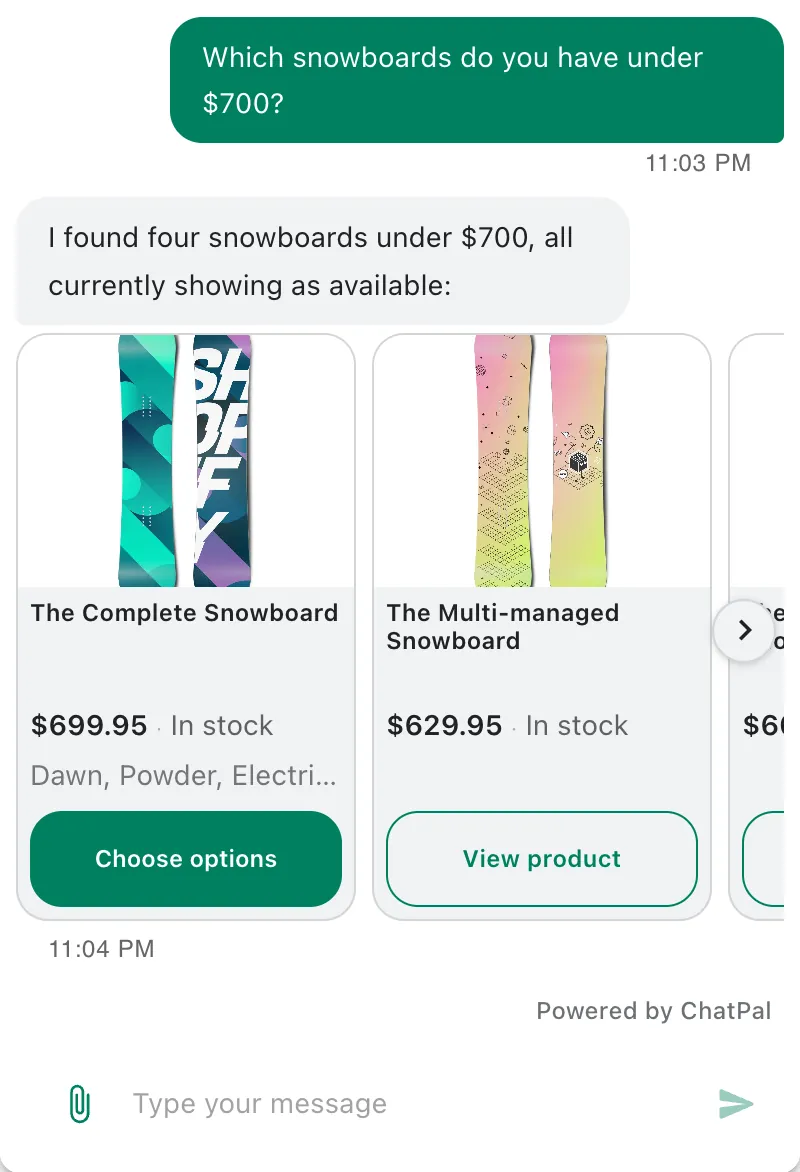
- Website chat. On Shopify it's an app embed you switch on in the theme editor. It's the only place where a shopper can add a product to the cart from the chat and ask what's in their cart. On any other website it's one line of code.
- Instagram. A Business or Creator account linked to a Facebook Page. Products arrive as a swipeable carousel.
- WhatsApp. You can keep the WhatsApp Business app on your phone or move the number to ChatPal. Up to three product cards per reply.
- Messenger. For a Facebook Page you're an admin of.
On the messaging apps the customer writes first; the assistant doesn't send outreach. It answers written messages and photos (up to four per message), not voice notes, and ChatPal doesn't answer email or phone calls. If your team already works in Zendesk, the assistant can answer tickets there instead.
Handing off to a person without losing the customer
Four things make a hand-off work, whatever tool you use:
- The bot says what happens next. "I've passed this to the team, they'll reply here" beats three rounds of "Sorry, I didn't understand".
- The person sees the whole chat. Nobody should ask the customer for the order number twice.
- The bot steps back. Once a person has the conversation, the bot stays quiet until they give it back.
- You can still reach a website visitor who leaves. WhatsApp and Instagram keep the thread. A website chat is gone when the tab closes, so the bot should ask for an email or phone number at the moment it hands off.
In ChatPal this is called Human-in-the-loop, and it's off by default. Switch it on and the assistant hands a chat over when the customer asks for a person, or when a message matches a category you created with the Human escalation type, such as "damaged or wrong item". The chat appears in Chats under Handed off to a human, the assistant goes quiet in it, and everyone in your workspace gets an alert by email or Telegram, as each person chooses. You reply from ChatPal and the customer receives it on the channel they wrote from. Return to AI hands the chat back.
On the website, a small form asks the visitor for a phone number or email when the chat is handed off, and what they leave is saved under Leads. If you kept the WhatsApp Business app, or you answer from the Instagram app, a reply you send from your phone pauses the assistant in that chat on its own.
With hand-off off, the assistant doesn't pass the chat to anyone: it offers your other contact details or says plainly that it can't connect the customer to a person there.
Setting it up in ChatPal
For a Shopify store, connecting takes about two minutes and the first setup about ten; leave an hour for testing.
- Connect the store. Sign in with your email or Google. In the dashboard, go to Integrations, then Shopify, type your
.myshopify.comaddress in Store address and click Connect Shopify. Shopify asks you to approve read-only access: ChatPal never changes your products, orders or settings. - Read what it set up. While the Setting up your store screen runs, ChatPal copies your catalog, reads your store's own pages (about, FAQ, shipping, returns, contact) and drafts a welcome message and instructions from them. Nothing you've already written is replaced unless you tick Replace.
- Fill the gaps. Open Configuration, then the Links tab, and check that your shipping and returns pages are listed. Add a missing one with Add Link and Single page only. Upload a returns PDF or a size chart document under Files. Whenever you edit a page on your store, click Reindex on its link.
- Write the rules. In Configuration, the Instructions field on the Basic tab tells the assistant how to behave. For example: "Answer only from our policies and catalog. Never promise a refund, an exchange or a delivery date for a pre-order. If an item arrived damaged or wrong, ask for the order number and a photo, then hand the chat to the team."
- Switch on the hand-off. In Configuration, go to the Settings tab and, under Additional Settings, turn on Enable human-in-the-loop. For the cases you always want to see, under Categories click Add, name the category ("Damaged or wrong item"), describe it, choose Human escalation as the behaviour and click Create.
- Turn on order support. On the Shopify page in ChatPal, find Order support and click Grant order access. Customers then sign in with their store account before the assistant answers about their orders. It needs Shopify's new customer accounts, and the page warns you if your store still uses the classic ones.
- Go live. In your Shopify admin, open Online Store, click Edit theme (or Customize), then App embeds, switch on ChatPal Chat Widget and save. Connect the messaging apps from Integrations: each has its own tile.
- Test with last month's questions. Open Playground, the same chat your customers get, and ask twenty real questions in your customers' words. Where an answer is wrong, click Why this answer? to see which pages and products it used, fix the source, and click Ask again.
The Shopify setup guide covers each of these screens in more detail.
Not on Shopify? A Horoshop store connects through its product export, refreshed once a day. On WooCommerce, Wix or a custom site you add the chat with one line of code and the assistant answers from pages it reads and files you upload. Those pages are a snapshot, so it can't see live stock or orders there: keep stock questions on the product page, or plan for a person to answer them.
Measuring it
"Conversations handled" tells you little. Four habits tell you whether the bot is helping:
- Read the hand-offs every week. Each chat under Handed off to a human either truly needed you, or shows a gap: a missing policy, a page that contradicts another. Fix gaps where the answer lives, on the page or in the instructions, and they stop coming back.
- Read ten chats it handled alone. A confident wrong answer never shows up as a hand-off. Skim a handful a week in Chats.
- Watch the hand-off share by topic. Analytics shows conversations by channel, how many went to a person and, once you've added categories, which topics come up most and which ones the assistant passes on.
- Lock in the answers that matter. In Assistant Tests, save your ten or twenty most important questions with the answer you expect (open a good chat in Chats and click Create test, or use Save as test in Playground), then rerun them after every change to your pages or instructions. Each graded reply counts toward your monthly messages, so thirty tests use about thirty.
There's no universal figure we'd trust for how many questions a bot resolves. It depends on how much of your inbox sits in the first five rows of the table above. Count your own before you start, then compare after a month.
What it costs
ChatPal charges a flat monthly price in dollars, with every channel and integration on every plan (checked 13 October 2026, plans):
| Plan | Price | Replies a month |
|---|---|---|
| Free | $0 | 100, one assistant |
| Starter | $20 a month | 500 |
| Standard | $50 a month | 1,500 |
| Pro | $120 a month | 4,000 |
You pay for the assistant's replies, not for conversations, and your own Playground tests count. New accounts get a one-time bonus of extra messages in the first month. As an illustration, assume each customer question takes three replies to settle (replace that with your own count): five questions a day is about 450 replies a month, inside Starter; fifteen a day is about 1,350, inside Standard.
Other tools price by seat, by conversation or by resolved ticket, which changes the maths as you grow. Our AI chatbot pricing comparison puts them side by side, and this list of customer service chatbots for small businesses compares the tools themselves.