
How to answer Instagram DMs automatically for a salon, without sounding like a bot
Yevhen Kurapov, co-founder · Updated Sep 29, 2026
Connect your Instagram Business or Creator account to an AI assistant, give it your price list, hours and rules, and let it book into your calendar. Keep complaints, colour corrections and anything unusual for yourself. Expect most of your time to go on the price list, not on connecting Instagram.
The same few questions fill a salon's DMs: how much, how long, are you free on Saturday, where are you, can I move my appointment. This guide sets up an assistant that answers those on Instagram from your own price list and books into your calendar, while you keep the messages that need your eye. This is a ChatPal guide, so the steps and screen names are ChatPal's (our assistant for salons). Connecting takes a few clicks; the price list and testing take longer.
Pause the assistant before you connect. It starts answering DMs the moment Instagram is connected, before it knows your prices.
What it answers, and what stays with you
The assistant replies to Direct Messages on your Instagram account, from the price list, hours and rules you give it and from your website if you have one. With a calendar connected, it offers free times and books.
Some messages stay with you, and a few can't be handled:
- Photos of what she wants. The assistant handles photos, up to four in a message, but "can you do this colour?" deserves your eye and your quote. A step 4 category catches the messages where she asks in words, and you can see the photos in Chats.
- Voice notes and videos get no reply at all.
- Story mentions aren't answered. A reply to a story is answered like a DM, without knowing which story.
- It only replies. It can't send a first message to a client.
Before you connect
First, sign up at chatpalbot.com with your email or with Google. ChatPal creates an assistant for you automatically; it's the one you'll set up under Configuration in the steps below.
The dashboard lists two requirements for Instagram:
- Your Instagram account is a Business or Creator account, not a personal one. The dashboard links to Instagram's instructions for switching.
- It's connected to a Facebook Page.
You also need the login for that Instagram account. A computer is the easiest place to connect. On some phones Instagram opens its own app and shows an error; tap Copy auth link next to Connect Instagram and finish in your phone's browser.
Now pause it. Open Configuration in the left navigation, and on the Basic tab click Pause on the Auto-replies card, choose Until I resume and confirm with Pause auto-replies. Until you resume at the end of this guide, keep answering DMs from the Instagram app as you do now.
Step 1: connect Instagram
In ChatPal, open Integrations in the left navigation and choose Instagram.
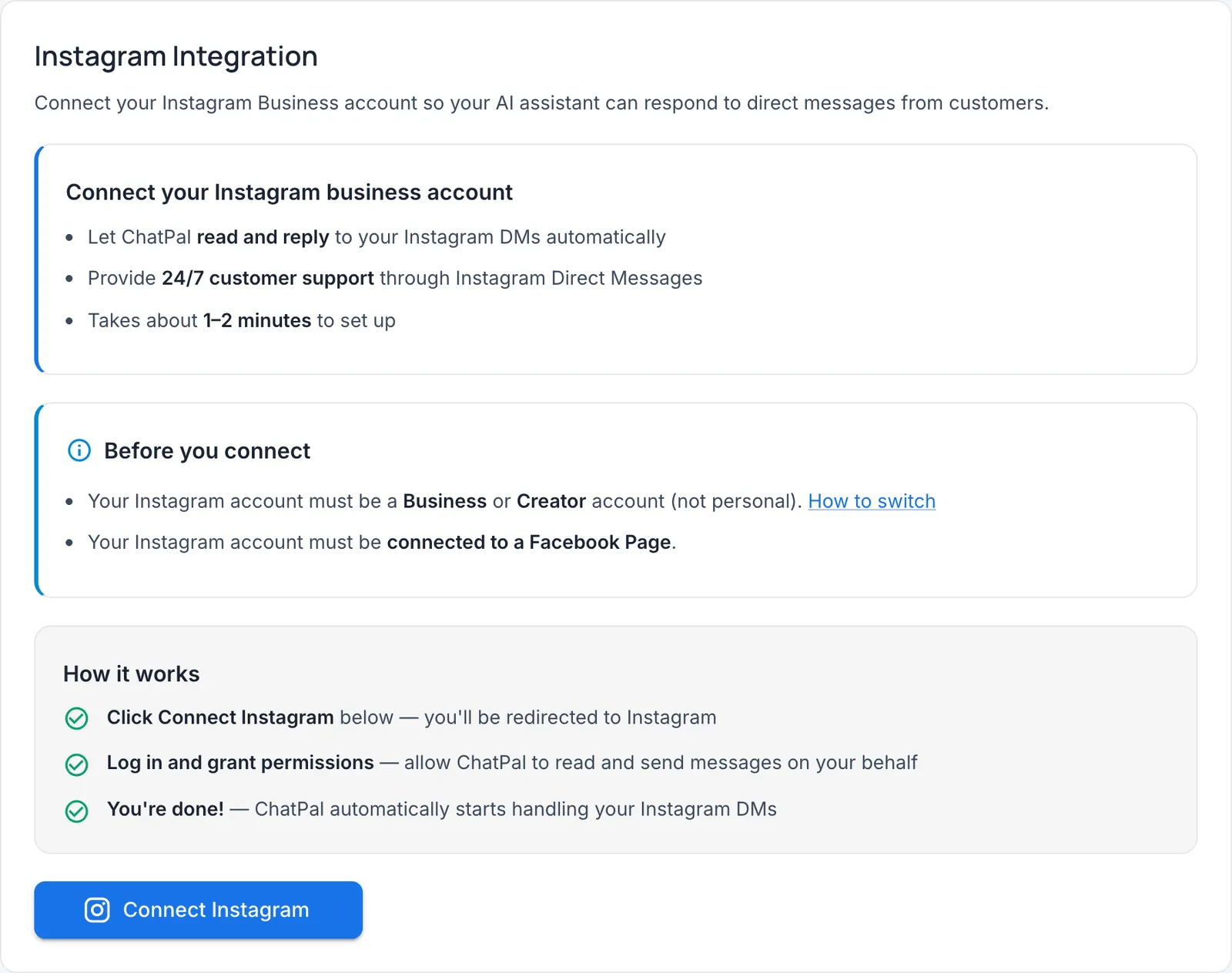
Click Connect Instagram, log in to your salon's account, and allow what Instagram asks for, which is to let ChatPal read and send messages on your behalf. You're taken back to ChatPal with "Instagram account connected successfully", and the page shows your account as Active.
Step 2: write your price list the way clients ask
Clients don't ask "what is your service menu"; they ask "how much for a full head of highlights on long hair?" So for each service, write:
- the name clients use, and any other names ("balayage", "hand-painted highlights");
- the from-price, and what makes it go up (length, thickness, a second colour);
- what's included (toner, blow-dry, a consultation);
- how long it takes.
Then what you answer every week: opening hours, address and parking, deposits, colour patch tests (how far ahead, whether she comes in), and late cancellations or no-shows.
A Word document, a PDF or a plain text file works; an image isn't read as a price list. If yours is only a photo or graphic, type it into a Word document first. Upload it in Configuration on the Files tab with Upload files. If your price list is already on your website, click Add Link on the Links tab and add the page instead.
Step 3: turn on booking
Connect the calendar you already use, in Integrations:
- Google Calendar, if you keep your appointments there. On its page you add your services and Bookable hours; the assistant offers those hours minus what's already booked. See the Google Calendar page.
- Altegio, if you book there already. Services, staff and times come from Altegio. See the Altegio page.
- Calendly, if you use it for consultations. See the Calendly page.
Only one booking integration can be active per assistant.
On Instagram, the free times arrive as buttons she taps. Instagram keeps button labels short, so a long service name is shortened. She gives her name and phone number (Calendly asks for her name and email instead), and the booking is created in Google Calendar, Altegio or Calendly, and you get a booking alert if you're the workspace owner or an admin, by email or Telegram (Telegram needs a one-time Connect Telegram on the Notifications tab). You choose which in step 4, in the same place as the handover alerts. With Calendly this needs a paid Calendly plan; on Calendly's free plan the assistant sends your Calendly link and she finishes booking there.
Booksy and Fresha aren't integrated, so the assistant can't book into them. It still answers prices and questions, and the client can be handed to you (step 4).
To take bookings on Instagram, WhatsApp and Telegram together, see how to book appointments from your messages.
Step 4: decide what goes to a person
Handing a chat to you is off until you switch it on. In Configuration, open the Settings tab and turn on Enable human-in-the-loop (under the Human-in-the-loop heading). Then, when a client asks for a person, the chat is handed to you. The assistant stays quiet in that chat until you click Return to AI.
For the messages you always want to see yourself, click Add under Categories on the same Settings tab, give it a Category name, and in Description say in plain words which messages it should catch, for example "The client asks for a colour quote or a colour fix, is unhappy with a result, or had a reaction after a treatment." Next to Min confidence, open the dropdown (it starts on Analytics only) and choose Human escalation, then click Create, so a matching message is handed to you.
When a chat is handed over, you're alerted by email, by Telegram, or both. To choose, click your workspace name, then Manage workspaces..., and open the Notifications tab. The chat waits in Chats, under Handed off to a human. Your reply there arrives in the client's Instagram DMs; click Return to AI when you're done.
A reply from the Instagram app doesn't stop the assistant. To answer yourself:
- One client: open her chat in Chats, click Take over and reply there.
- Everyone, for a while: pause the Auto-replies card. Her messages then sit in your Inbox, and she gets your escalation message once if you've set one, but no other automatic reply. Resuming only puts the assistant back on her next new message — not the ones already waiting there.
Keeping it from sounding like a bot
Keep replies short: a client asking "how much is a trim?" wants the price and the time. Compare two answers to "how much for highlights on long hair?":
- Bot-like: "Thank you for your enquiry! Prices vary depending on several factors. Please contact us for a personalised quote."
- Better: "Highlights on long hair start at £95 and take about three hours. Want me to check Saturday?"
The second only works if your price list says it. In Configuration, stay on the Basic tab and put your style in the Instructions field, then click Create (or Update, if instructions are already saved):
Reply like we do in our DMs: two or three short sentences, first names, no more than one exclamation mark per reply. Always give the from-price and how long it takes. If the answer isn't in our price list, don't guess. If someone asks, say you're the salon's automated assistant.
Then test before clients see it. Take ten real DMs from last month (five if you're short of time), including the awkward ones, and ask them in the Playground (it's in the left navigation). Click the short line under an answer to see which sources it used and any category it recognised; click a source's name to read the passage. Check that your step 4 categories catch the right messages. Fix the document or instructions when an answer is wrong. Save the good ones with Save as test and rerun them in Assistant Tests after each change. Test replies count towards your monthly messages. ChatPal stores conversation history, and you can export conversations from Chats.
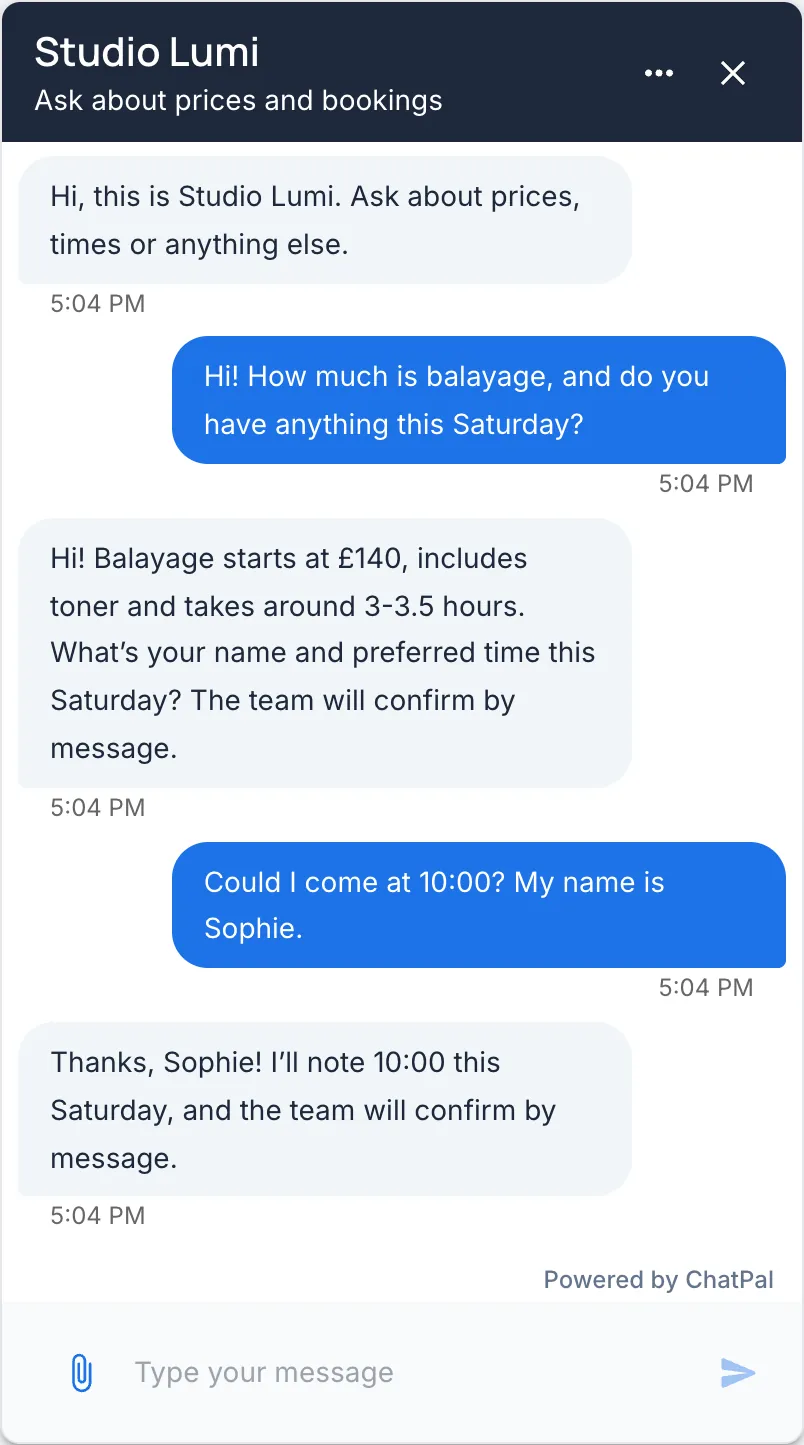
In this demo the assistant asks for her name and preferred time.
When the answers look right, reply yourself to anyone still waiting, then click Resume on the Auto-replies card. Send a DM from a different Instagram account to check it answers, and read every chat in Chats for the first week.